
OneNote Tips Every Student Should Know
OneNote Tips Every Student In the modern classroom, students are constantly seeking tools that can help them stay organized, manage notes, and streamline their study habits. Microsoft OneNote has emerged as one of the most powerful digital note-taking platforms for students across the United States. With its versatile structure, seamless integration with other Microsoft apps, and intuitive design, OneNote enables students to organize classes, track assignments, and enhance learning efficiency.
Mastering OneNote goes beyond simply typing notes. Students who strategically use its features can improve productivity, retain information more effectively, and reduce the stress associated with managing multiple subjects. This guide explores essential OneNote tips that every student should know to maximize its potential and achieve academic success.
Setting Up OneNote Tips Every Student for Success
OneNote Tips Every Student Before diving into advanced features, it’s crucial to establish a well-organized structure in OneNote. Start by creating separate notebooks for each class or subject. This approach ensures that notes, assignments, and resources are logically grouped and easily accessible. Within each notebook, create sections for topics, chapters, or weeks, and utilize pages for individual lectures, assignments, or study guides. How to Take Effective Lecture Notes in College.
Consistent labeling of notebooks, sections, and pages is key to efficient navigation. Using descriptive titles such as “Biology – Week 3 Lecture” or “History – Assignment Tracker” allows students to locate information quickly. Color-coding notebooks and sections further enhances visual organization and supports intuitive navigation, making study sessions more productive.
Utilize Section Groups for Large Classes
OneNote Tips Every Student For subjects with extensive content, OneNote’s section group feature can help manage complexity. Section groups act as sub-notebooks, allowing students to categorize related material without cluttering the main notebook. For example, a “Mathematics” notebook could have section groups for “Algebra,” “Geometry,” and “Calculus,” each containing individual pages for lessons, practice problems, and notes.
This hierarchical organization keeps notebooks streamlined and ensures that students can access specific content without scrolling through hundreds of pages. Section groups also provide a clear overview of course structure, enabling students to plan study sessions effectively.

Take Advantage of Digital Ink
OneNote Tips Every Student One of OneNote’s most powerful features is digital ink, which allows students to handwrite notes using a stylus, tablet, or touchscreen device. Digital handwriting can enhance memory retention, as writing by hand engages cognitive processes differently than typing. Students can annotate lecture slides, draw diagrams, or solve equations directly within OneNote, combining visual and textual learning.
Digital ink also allows for easy editing and reorganization of notes. Unlike paper notebooks, students can move, resize, or delete handwritten content without starting over. Combining digital ink with typed text creates a flexible note-taking system that caters to multiple learning styles.
Leverage Tags for Quick Reference
Tags are a simple yet powerful way to categorize and prioritize information in OneNote. Students can use tags to mark important points, highlight questions, track assignments, or flag items for review. For example, using a “To-Do” tag on homework or project tasks ensures nothing is overlooked, while a “Question” tag can identify areas that require further clarification.
OneNote allows students to search for tags across all notebooks, providing a centralized way to review important content. This feature is particularly useful during exam preparation, as students can quickly compile all key points, questions, and action items into a single view.
Embed and Link Resources
OneNote Tips Every Student Modern learning often involves digital materials such as PDFs, images, videos, and online articles. OneNote allows students to embed or link these resources directly within their notes. By centralizing lecture slides, reading materials, and multimedia content, students can reduce the time spent switching between platforms and focus on studying efficiently.
For collaborative projects, students can also insert links to shared documents, spreadsheets, or cloud storage files, making OneNote a hub for both personal and group work. Embedding resources ensures that all essential content is accessible in one place, supporting a cohesive learning experience.
Organize Notes With Pages and Subpages
Pages and subpages in OneNote provide flexibility for structuring lecture notes and study materials. A main page might contain the overall topic, while subpages break down lessons, exercises, and supplementary materials. For example, a “Chemistry – Week 1” page could have subpages for “Lecture Notes,” “Lab Assignments,” and “Practice Problems.”
This layered approach minimizes clutter and helps students locate specific content quickly. Additionally, subpages support chronological organization, allowing students to track progress over the semester and create a natural flow for reviewing material before exams.

Use OneNote Templates
OneNote Tips Every Student offers templates that streamline notetaking and task tracking. Students can select templates for meeting notes, class outlines, or project planning, saving time and maintaining consistency. Creating custom templates for recurring tasks, such as weekly lecture notes or assignment trackers, ensures uniformity and efficiency across subjects.
Templates also enhance readability and focus, as structured pages reduce cognitive load and allow students to concentrate on content rather than formatting. Consistently using templates creates an organized system that can be maintained throughout the academic year.
Integrate To Do Lists and Planners
OneNote can double as a task manager by incorporating to-do lists and planners. Students can create checklists for homework, assignments, and exam preparation, and track progress using completion checkmarks. Integrating tasks within class notebooks ensures that assignments are contextually linked to relevant notes and resources.
OneNote Tips Every Student Combining to-do lists with OneNote’s calendar integration helps students plan their workload effectively. By aligning tasks with deadlines, students can allocate sufficient time for studying and avoid last-minute cramming. This integrated approach promotes accountability and improves overall productivity.
Collaborate With Classmates
Many students work on group projects or need to share notes with peers. OneNote’s collaboration features allow multiple users to edit notebooks simultaneously. Shared notebooks facilitate real-time communication, reduce duplicated work, and ensure that all group members have access to up-to-date content.
OneNote Tips Every Student Collaboration in OneNote extends beyond note-sharing. Students can comment on each other’s contributions, assign tasks, and track progress collectively. This interactive approach enhances teamwork, strengthens understanding, and encourages peer learning, which is invaluable in academic settings.
Search and Find Content Instantly
OneNote’s search functionality is a game-changer for productivity. Students can search across all notebooks for keywords, phrases, or tags, instantly locating relevant information. This is particularly useful when preparing for exams or completing assignments, as it eliminates the need to manually browse through multiple pages.
OneNote Tips Every Student Advanced search options allow filtering by date, section, or tag, making it even easier to retrieve specific content. Efficient search capabilities save time, reduce stress, and ensure that students can access critical information when they need it most.
Record Lectures and Audio Notes
OneNote allows students to record audio directly within a page. This feature is ideal for capturing lectures, especially when complex topics require multiple reviews. Recorded audio can be replayed alongside written notes, allowing students to clarify misunderstandings and reinforce learning.
Audio recordings also support diverse learning styles, as students can listen while commuting, exercising, or during study breaks. Combining audio with written notes and visual aids in OneNote creates a multimodal study system that enhances comprehension and retention.

Utilize OneNote Across Devices
OneNote’s cloud-based system ensures seamless access across multiple devices, including laptops, tablets, and smartphones. Students can start taking notes in class on a tablet and continue reviewing or editing them on a laptop at home.
This cross-device functionality enhances flexibility and ensures that notes are always available. Automatic syncing prevents data loss and allows students to work efficiently regardless of location. By using OneNote on multiple devices, students can maintain a consistent workflow and adapt to different learning environments.
Enhance Notes With Visual Elements
Incorporating visual elements such as charts, diagrams, and images into OneNote notes enhances comprehension. Visual aids help break down complex information, making it easier to understand and remember. Students can create flowcharts for processes, annotate images, or use color-coding to differentiate key concepts.
Visual learning supports memory retention, as the brain processes images faster than text alone. By combining visual elements with structured notes, students create a richer, more engaging study experience that caters to different learning preferences.
Review and Revise Notes Regularly
Consistent review is essential for retaining information over time. OneNote’s structure makes it easy to revisit notes, update content, and consolidate knowledge. Students can use the platform to summarize lectures, highlight key points, and cross-link related topics.
Regular revision also allows for the identification of gaps in understanding. By integrating review sessions into a weekly or monthly routine, students ensure that notes remain relevant, comprehensive, and ready for exam preparation.
Secure and Backup Your Notes
Security is a critical consideration for digital note-taking. OneNote automatically syncs notebooks to OneDrive, ensuring that notes are backed up and accessible even if a device is lost or damaged. Students can also protect sensitive pages with passwords, preventing unauthorized access.
Regular backups provide peace of mind and protect academic work from accidental deletion. Knowing that notes are secure allows students to focus on learning rather than worrying about data loss.
Customize OneNote for Personal Workflow
Every student has unique study habits, and OneNote can be customized to reflect individual preferences. From adjusting page layouts to using different font styles, colors, and highlighting options, customization enhances usability and engagement.
Personalized organization strategies, such as grouping subjects by difficulty or priority, create a workflow tailored to the student’s needs. By aligning OneNote’s functionality with personal learning styles, students can create an environment that maximizes focus, motivation, and productivity.
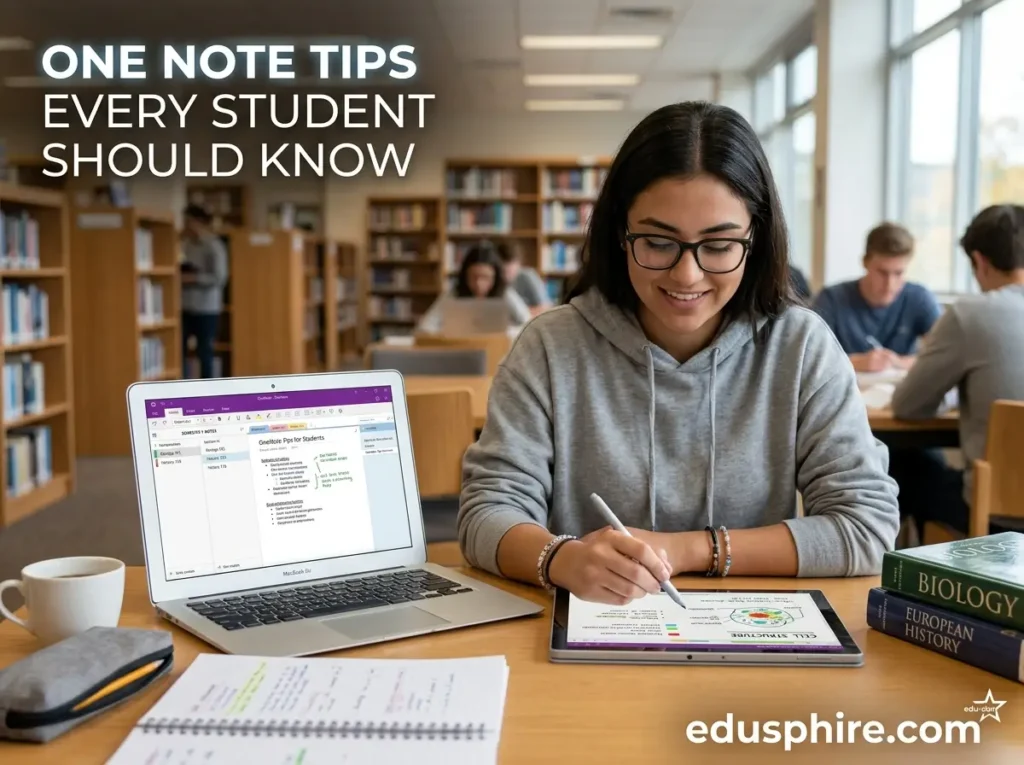
Benefits of Mastering OneNote
Mastering OneNote provides numerous advantages. It centralizes information, reduces the risk of lost notes, and enables efficient tracking of assignments and deadlines. Students who use OneNote strategically experience improved time management, enhanced comprehension, and greater confidence in their academic performance.
Beyond academics, OneNote fosters digital literacy, collaboration skills, and organizational habits that carry over into professional environments. These long-term benefits make OneNote an essential tool for students seeking to excel both in school and beyond.
Conclusion
OneNote is more than just a digital notebook; it is a comprehensive platform that empowers students to take control of their academic life. By creating structured notebooks, utilizing section groups, leveraging tags, embedding resources, and integrating multimedia elements, students can enhance learning, stay organized, and achieve their academic goals.
The key to maximizing OneNote lies in consistent use, thoughtful organization, and adapting features to individual needs. From tracking assignments to collaborating with peers and reviewing content efficiently, OneNote supports every aspect of a student’s academic journey.
OneNote Tips Every Student across the United States can benefit from these tips, transforming the way they take notes, manage classes, and prepare for exams. With OneNote, academic success becomes more manageable, stress levels decrease, and students gain the tools to thrive in an increasingly digital learning environment.
OneNote Tips Every Student By integrating these strategies into daily routines, students can build productive habits that extend beyond the classroom, enhancing both learning outcomes and personal growth. Mastering OneNote is not just about note-taking; it is about creating a system that fosters clarity, efficiency, and long-term academic achievement.